Text briefing | Sources checked November 11, 2026
Check a PDF Redaction Before AI Upload
Constructed teaching case: the executive-brief PDF and reference code below are fictional. We built and tested the two local files described here. We did not send either file to an AI service or capture an AI failure.
Watch the full walkthrough on YouTube
A fictional one-page brief looks covered, but local extraction still finds its reference code. Check the exact saved PDF before sharing it with an AI tool.
- For
- People checking a permitted PDF before sharing it with an AI service.
- Use it to
- Compare the rendered view with the saved file, then confirm owner and destination approval.
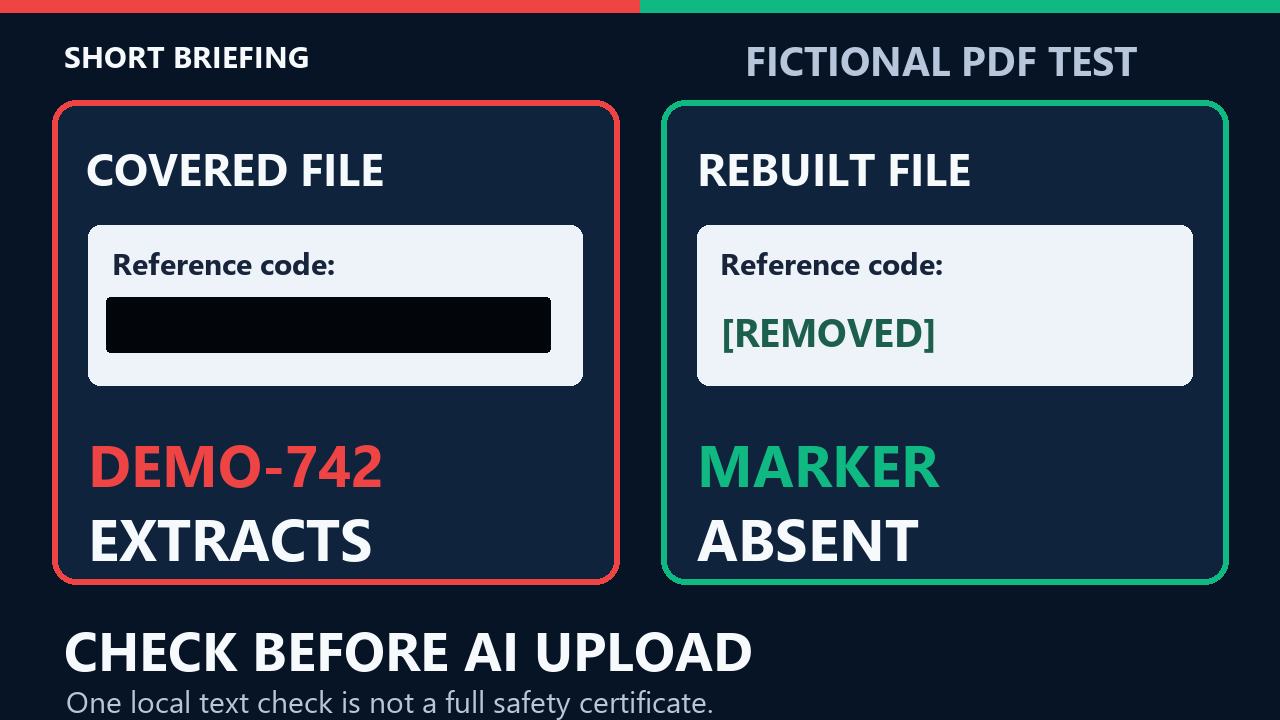
A black box on an executive brief can hide a line on screen while leaving that line in the PDF. If you upload the file because the page looks covered, you may be handing an AI tool text you meant to remove. The useful question is not “Can I see it?” It is “What remains in the saved file I am about to share?”
A fictional brief with two different answers
Our constructed one-page PDF is titled Fictional vendor summary. It says there are no real records or customer data. One line reads Reference code: DEMO-742. We drew an opaque black rectangle over that line and saved the PDF. In the rendered page, the rectangle fully covers the code. A local text extraction of that same saved file still returns Reference code: DEMO-742.
We then built a separate PDF from source text in which the code had been replaced by [REMOVED FROM SOURCE]. Its rendered page shows the replacement, and the same extractor does not find DEMO-742. That second file is a clean-source comparison, not a claim that a redaction tool removed all hidden content from the first PDF.
| File in this constructed test | What the page shows | What the local text check finds | Decision for this example |
|---|---|---|---|
| Black-overlay PDF | A black rectangle covers the reference line | Reference code: DEMO-742 | Hold. The target text remains extractable. |
| Rebuilt clean-source PDF | Reference code: [REMOVED FROM SOURCE] | No DEMO-742 in this extraction | Continue the remaining checks; this result alone is not upload approval. |
The test is reproducible with our retained synthetic files and extraction output. It establishes a narrow result: this overlay did not remove this text object. It does not establish that any AI product read the code, that every covered PDF behaves the same way, or that one extractor can certify an entire document safe.
Why the visible cover is an incomplete check
The PDF drew the text and then drew a rectangle on top of it. The rendered page can show only the rectangle while the earlier text remains part of the file. Adobe’s PDF guidance warns that placing a colored bar over content is insufficient. Adobe also distinguishes applying redactions to remove visible content from sanitizing hidden information such as metadata and embedded content. These are separate jobs, and the second is not automatically proved by the first. Adobe on a colored-bar cover; Adobe on redaction and sanitization.
This is why a screenshot or thumbnail cannot answer the upload question. It shows a rendering, not the whole saved PDF. The problem matters in an AI workflow because you are deciding which file to provide to another system. This lesson does not assume any particular AI service’s PDF parser, storage practice, or privacy setting.
A four-part pre-upload check
- Name what must be absent. Work from a copy you are permitted to inspect. List the exact sensitive terms, fields, images, and pages that must not leave your approved environment. Record who owns the document and where the final copy is permitted to go. If that is unknown, hold the upload.
- Remove content using the approved process. A black shape or highlight may only cover a view. A screenshot crop does not prove that the final PDF has been cleared. Use the document owner’s approved PDF redaction and sanitization workflow, or rebuild the document from a clean source that excludes the content. Save a new final copy. Do not call it safe merely because an editing control says “redacted.”
- Check the exact saved copy. Reopen it. Search for the target terms and extract text locally where permitted. Inspect every page, including images, and check hidden information and attachments with an approved tool or reviewer. If a target appears anywhere you can check, stop and revise the file. A negative result from one search or extractor is one check, not a universal guarantee.
- Get the destination decision. Have the responsible owner review the final copy and the intended AI destination under your organization’s rules. Only upload when both the file and destination are approved. An AI assistant can help draft a checklist from non-sensitive facts; it should not be the sole judge of whether the file is safe to share.
Copy this rule
Use this four-line instruction when you are planning a permitted document handoff. Do not paste the unverified PDF into an AI chat to run the check.
Before any PDF upload, treat visual black boxes as unverified; do not ask me for the file yet.
Ask for the owner-approved removal plan and the local text, page, metadata, and attachment checks on the final saved copy.
If a target remains or any check is missing, say HOLD and list the exact unresolved checks.
Only draft the handoff after the document owner confirms the final copy and AI destination are approved.
In the fictional example, the correct response to the covered file is HOLD: the local extractor found DEMO-742. For the rebuilt file, the marker is absent from that one extraction, but the remaining document checks and owner decision are still needed. This prevents a neat-looking cover from becoming an unsupported “safe to upload” claim.
Try it safely
Make a one-page file using a made-up marker such as DEMO-742. Put a black rectangle over it in a copy and check what a permitted local extractor returns. Then rebuild a separate copy without the marker and compare. Do this only with synthetic material. On a real document, follow the owner’s approved redaction and sanitization process rather than treating this small exercise as a security test.
Next step: Before your next approved AI document upload, write down one term or field that must be absent and verify the saved file, not just its preview. If you cannot complete the checks or confirm the destination, hold the upload and ask the document owner.
Sources and test record
- Adobe Acrobat: Redact and sanitize PDFs — official guidance, updated October 22, 2026; distinguishes applied redaction from hidden-information sanitization. Checked November 11, 2026.
- Adobe Acrobat: Why covering PDF content is insufficient — official explanation of colored-bar covering. Checked November 11, 2026.
- Local constructed demo:
demo/fictional-covered-text.pdfanddemo/fictional-sanitized-source.pdf;demo/demo-evidence.jsonanddemo/demo-visual-qa.mdretain exact extraction, render and SHA-256 evidence. No real workplace data or AI model call was used.
One step you can use
Check the saved file, not its preview.
Before a permitted AI document upload, identify one term that must be absent and verify the exact final copy. Hold the upload if the checks or destination approval are incomplete.
Limits
One negative text extraction cannot certify a whole PDF. Check pages, images, hidden information and attachments through the approved process.
Disclosures
The brief, reference code and PDF comparison are constructed from synthetic files. No real record was uploaded to an AI service or tested for a model failure. The companion video uses synthetic narration and original graphics.
Corrections
No corrections have been recorded. See the corrections process.